Shortcut
To learn more about how Steady's Shortcut integration works, see our Shortcut integration overview.
Set up
To set up the Shortcut integration:
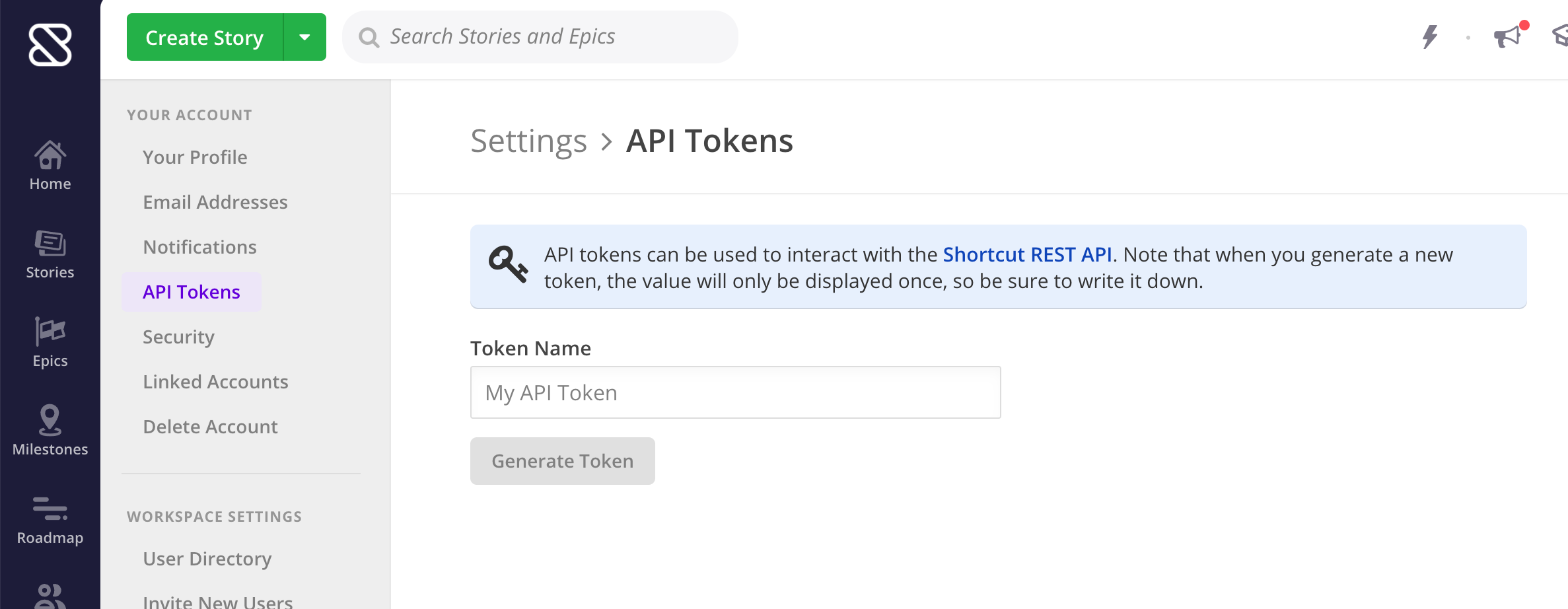
- Visit the API tokens section of your Shortcut settings.
- Create a new token for use with Steady, and copy it to your clipboard.
- Visit the Account Management - Integrations page in Steady. Under the Shortcut panel, paste your Shortcut API token and click Save.
- Copy the URL listed under Webhook URL in Steady.
- Log in to Shortcut, open the Integrations menu, and select Webhooks.

- Click Add New Webhook
- Paste in the URL under the Payload URL field, and then click the next Add New Webhook button. That's it!
To test it out, make a change in Shortcut and look for a new entry on the Activity page.
Troubleshooting
- Look for updates ion the Activity page first. The dashboard will sum up updates from the previous period. (The check-ins essentially say "here's what I did yesterday, and here is all of the Shortcut activity to go along with that.")
- Check to make sure the email address that is being used in Shortcut matches the email address that is being used in Steady. If you or a team member is using a different email address in Shortcut, set the secondary email address in Steady to match the one used in Shortcut.
- Steady won't be able to record data retroactively. Make sure you generate some activity in Shortcut in order to test things out after you've set up the connection.