Add people to teams
To add a new team member, go to the Teams & People page and select “Edit members” from the menu on the corresponding team.
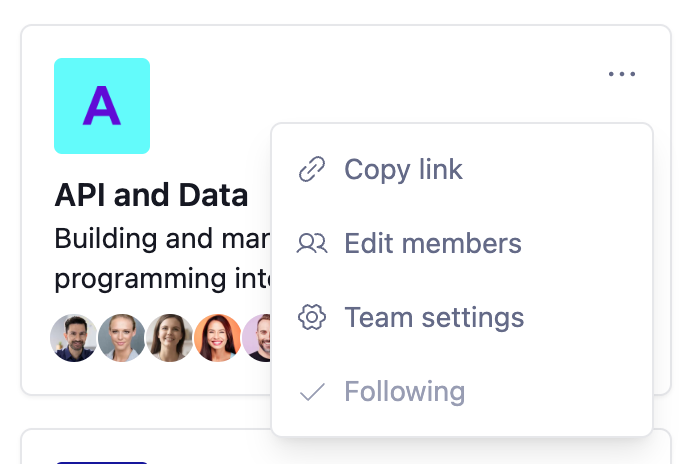
From the Members page, select “Add members” and choose to add new team members.
When you add a team member, they’ll get a notification email that explains Steady and invites them to sign in.
Tip: Using SSO or on an enterprise plan? You can skip manual invites and automatically provision people into the right teams from your identity provider (Okta, Microsoft Entra ID, etc.) using SCIM. New hires are added when they join the matching IdP group, and removed when they leave — no Steady admin work required. See SCIM 2.0 setup.
Roles & Permissions
By default, new team members are added as a “Contributor”, meaning they do not have access to Workspace settings or Team Settings. You can modify user roles in Team Settings and choose to disable check-ins for specific people.
Add a Team Lead
To add a Team Lead, go to the Teams & People page, select “Team Settings” from the menu on the corresponding team, and then select Members in the left-hand menu.
In the drop-down menu to the right of the member, change “Contributor” to “Team lead.”
Team Leads can:
- Update team settings
- Update team visibility
- Add/remove users to a team
- Designate other users as Team Leads
Team Leads cannot:
- Delete a user
- Access workspace settings
- Deactivate or reactivate a team
- Deactivate themselves
- Remove themselves as Team Leads
- Log in if they are deactivated from the teams they are on
Turn off check-ins for a team member
Administrators and Team Leads can designate which team members are asked to provide check-ins. Users who are part of the team but disabled from providing check-ins will get a daily check-in summary from the team but will not be prompted to check in, and they won’t show up in the team summary or affect the check-in completion rate.
To modify which team members provide check-ins, go to the Teams & People page, select “Team Settings” from the menu on the corresponding team, and then select “Check-ins” from the left-hand menu.
Under the “Collect check-ins from…” section, use the toggles next to the team members to enable or disable check-ins for them.